7.15.2013

3D Adirondack Chair Silhouette Tutorial

This file is available at 3dcuts.com here.

Project Description: 

I have just returned from our summer vacation travels and it provided my inspiration for the weekly 3D shape. What can be more appropriate for mid summer than a classic Adirondack chair? It works at the beach or in the mountains. And they have started making them in so many glorious colors as well!
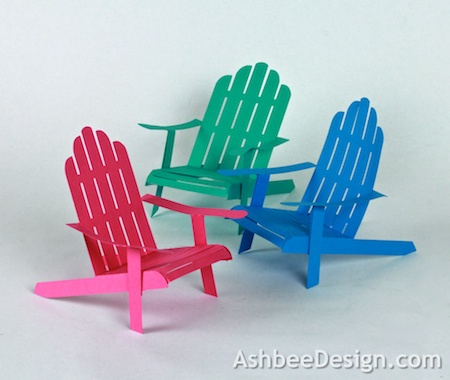

The finished chair stands about 4" tall and can be cut from a single 8.5 x 11" sheet of card stock so those of you with a Silhouette Portrait can use this pattern as well.

Use these little chairs as seasonal decor on the end table, clustered with a few shells as a table centerpiece, or as name holders for a picnic. They are as classic as the original.

Note:I am a new Silhouette Contributing Artist. Both my Silhouette files and this website are the beginning. Send along any suggestions, problems, ideas or photos as we learn to create together. I'd love to hear from you!  Marji RoyeMail: ashbeedesignemail@gmail.comTutorial assembled using Silhouette Software Release 2.7.18. This tutorial assumes you already know how to use the Silhouette and Silhouette software.

Supplies Needed:

  • Template from Silhouette from 3dcuts here.
  • Glue dots 3/16"
  • Silhouette Cameo or Portrait
  • 1 sheets of 8.5 x 11" Card Stock for each chair

Steps for completing the 3-D Adirondack Chair project:

1. Download the cutting file for your Silhouette Cutting machine here.  The file is quite simple, just two pieces.


2. Cut the file.
  • Use card stock. Cut settings will depend on your card stock thickness. I used speed of 3, depth of 33 and blade set at 3. 
  • Remove the pieces from the sticky mat. Proceed with care because there are several places that are easy to tear through.

  • Here are the two cut shapes.


3. Fold and assemble the chair seat.
  • Note each cut file has dotted cut lines. These are fold lines. 
  • The two side rails get folded DOWN and the seat back gets folded UP along the dotted lines.

  • Notice the two little tabs on the sides at the front of the slatted seat. These get folded down as well and will hold the seat front in a curved shape.

  • These get glued to the back side of the curved front edge of the side slats.
  • Put 2 glue dots on the back-side of the side slat.


  • Curve the chair seat down and around sticking the little tabs to the glue dots.

  • Do this to both the left and right sides of the chair seat front.


4. Fold and assemble the chairs arms and legs piece.

  • The remaining piece includes both the chair arms and front legs connected by a back brace.
  • There is a long tab on the back brace that needs to be carefully folded up.
  • The short leg pieces in the center need to be folded up.
  • The 2 longer leg pieces need to be folded up and then out as shown below

  • The short leg pieces get glued (using 3/16" glue dots) to the longer leg pieces on each side as shown in the photo below.
  • Do this on each side leg.


5. Attach the arm/leg piece to the chair seat piece.
  • Attach a row of glue dots along the folded tab of the back connector on the arm/leg piece.

  • Position this behind the lower brace on the chair back with the tab facing down and the legs toward the front facing down.
  • The top edge of the cross brace on the arm piece will line up with the top edge of the bottom brace cut into the chair back.
  • Be carefully to have the brace straight before pressing into place.


6. Attach the side arms to the seat base. 
  • The front legs now get attached to the sides of the seat base using glue dots. The positioning here is tricky so proceed with care.


  • If you look carefully, you will see a tiny tab extension on the lower side of the side rail. The front of the leg lines up with the front of that notch.

  • You want to position the leg so that the arm of the chair is level and not buckled. You may need to play with the angle and the height.
  • Once you have established the correct location, glue it into place with a glue dot.

  • Do the same positioning with the opposite leg. 
  • Be careful here because you want the two sides to match.
  • You can trim the bottom of the legs a little bit if the chair is wobbly.

Now look at all your card stock in summery colors and create a collection of chairs for display!


**********
© 2013 Marji Roy, Ashbee Design


7.08.2013

3D Ledge Village - Store and Gazebo Tutorial

Project Description: 

The Ledge Village is series of 3D buildings and accessories that can be combined in a mix and match fashion to build tiny villages on small ledges around your home.  The buildings are thin, with all detail on the front so they fit on small trim ledges.  Each file comes with a building and some accessories to build the village. This tutorial is for the store front and gazebo.


Other files in the series include:

A store front was always in the plan but I wasn't sure what accessory to include with it. I considered a phone booth or an old fashioned US Mail box but they would be so tiny. The gazebo came to mind.


Here is a view of the some of the other buildings in the village arranged on a shelf.


Update 7/18/2013
Love to share!
I made the first group of ledge houses for my laundry room ledge which I shared here and here. Since sharing those cutting files via Silhouette, I have been creating new buildings for Ledge Village and trying to upload one design every week or two (yes more are coming). Several people have emailed me about the collection they are building. Yesterday I was sent a link to a photograph by Mhairi Hastings showing her creative use of my Ledge Village cutting files. She gave me permission to share the photo here. It might give you ideas on a different display technique- no ledge involved. Here is a link to her almost brand new blog Galloway Beltie Papercrafts.


She created a village in the round and added some other winterscape elements to the collection. Love it!

I will add other photos (if well done) to the site to share additional display ideas for the Ledge Village files. Send them along!

Now, on to the tutorial........

Note:
I am a new Silhouette Contributing Artist. Both my Silhouette files and this website are the beginning. Send along any suggestions, problems, ideas or photos as we learn to create together. I'd love to hear from you!  Marji Roy 
eMail: ashbeedesignemail@gmail.com
Tutorial assembled using Silhouette Software Release 2.7.18. This tutorial assumes you already know how to use the Silhouette and Silhouette software.

Supplies Needed:

  • Template from Silhouette On-Line Store
    • 3D Ledge Village Store and Gazebo here. 
  • Glue dots 3/16"
  • Silhouette Cameo
  • Card Stock 

Steps for completing the 3-D Store Front Construction:

(Gazebo follows below)
1. Download the cutting file for your Silhouette Cutting machine from the Silhouette Online Store here. The store front and gazebo come in the same file. I will give the storefront assembly directions first, followed by the gazebo below.

2. Prepare the files:
  • The downloaded Silhouette file for the store front and gazebo looks like this. The store front and gazebo can be copied and separated. Each will fit on an 8.5 x 11" piece of card stock, or they can be left together and cut from a 12 x 12" piece.


3. Cut the files.
  • The settings will depend on the paper you use. I have been using white index card stock and cutting at a speed of 3, a depth of 33 and the blade set to 4.
  • Carefully remove the cut files from the backing mat.
  • Here are the parts for the store. There is the large building and the smaller add-on awning.


4. Fold the store and awning.
  • Note each cut file has dotted lines. These are fold lines. 
  • Fold all the dotted lines inward and the doors out.


5. Glue the awning together.
  • Add a glue dot at each end to hold it in place.


  • Put 3-4 glue  dots on the back side of the awning and position it on the store front above the doors and windows.


6. Glue all seams starting at the base.
  • I start putting the building together at the base using glue dots. 
  • Work to keep the edges square.


  • Glue up the flat roof. 
  • It is placed below the front edge.


  • I insert a skinny tool through the door to help press all seams together.


  • There is not separate roof piece (like in the other Ledge Village designs) for the store front.
  • I glued the back and side last to complete the store front.


Gazebo Construction


  • There are two gazebo pieces, the main building and a separate roof.

  • Fold on all the dotted lines.
  • There are 3 folds you must make that are not dotted. The connections are too tiny to add a dotted line.
  • The floor must fold up along the bottom of the railing.
  • The posts on the ends of the two sides must be folded in.


  • Start by gluing the roof together. Add glue dots to the tab and glue in place.


  • Once the roof is together, the side walls will fold around to connect to the front.
  • The posts on the end of the side walls fold in behind the matching posts on the corners of the front wall.

  • Add glue dots and glue the posts together.


  • The front pieces have glue tabs on the bottom of each post.  
  • Add glue dots to those and fold them back under the floor. 
  • Place carefully to keep things square.

  • The roof piece gets added last. Add some glue dots and position it to provide the overhang.

And that completes the store front and gazebo.


 Add them to other buildings in your ledge village.


**********
© 2013 Marji Roy, Ashbee Design

7.01.2013

3D Ledge Village – Barn

Project Description: 

The Ledge Village is series of 3D buildings and accessories that can be combined in a mix and match fashion to build tiny villages on small ledges around your home.  The buildings are thin, with all detail on the front so they fit on small trim ledges.  Each file comes with a building and some accessories to build the village. This tutorial is for the barn and silo.


Other files in the series include:

And there are more to come!

Here is a view of the some of the other buildings in the village arranged on a shelf.


Below you can see an arrangement including the two-story house, cottage, school house and the church arranged on a different ledge. Look for interesting places in your home. Window sills work as well.


Note:
I am a new Silhouette Contributing Artist. Both my Silhouette files and this website are the beginning. Send along any suggestions, problems, ideas or photos as we learn to create together. I'd love to hear from you!  Marji Roy 
eMail: ashbeedesignemail@gmail.com
Tutorial assembled using Silhouette Software Release 2.7.18. This tutorial assumes you already know how to use the Silhouette and Silhouette software.

Supplies Needed:

  • Template from Silhouette On-Line Store
  • Glue dots 3/16"
  • Silhouette Cameo
  • Card Stock 

Steps for completing the 3-D Barn Construction:


1. Download the cutting file for your Silhouette Cutting machine from the Silhouette Online Store here .

2. Prepare the files:
  • The downloaded Silhouette file for the barn looks like this. The barn includes a cupola, a silo and several barnyard fences.


3. Cut the files.
  • The settings will depend on the paper you use. I have been using white index card stock and cutting at a speed of 3, a depth of 33 and the blade set to 4. It will fit on 1 12 x 12 piece of card stock or can be split to 2 smaller pieces 8.5 x 11.
  • Carefully remove the cut files from the backing mat.
  • Here are the parts for the barn.

4. Fold out the vents on the cupola. 

  • This is a small step that is easiest to do before you put the building together!  
  • A small piece of metal works to pick the flap up and fold it.


5. Fold the Barn.
  • Note each cut file has dotted lines. These are fold lines. 
  • Fold all the dotted lines inward. I forgot to take a photo of the barn in this state but here is one of the school house.


6. Glue all seams starting at the base.


  • I like to use Glue Dots on the edges. 
  • It is important to make square corners. I start at the bottom and get that even and then move up to the roof line.

  • I insert a skinny tool through the door to help press all seams together.

  • After getting the base square, I glue the side seams together.


  • Postion the roof flaps and glue in place.


  • Position the sides of the cupola and glue those into place.

  • Position the roof on the cupola and glue that into place.


  • The two extra roof pieces get glued on next. They are flush with the back and have an over-hang in front.
  • The notch of the larger roof piece slides around the cupola.


7. Build the Silo.
  • First pull the silo over the edge of your desk to curve the paper in the direction of the silo curve.


  • Glue the tab of the silo and fold it into place.

  • Put glue dots on all the little tabs on the bottom of the silo.
  • Fold the semi-circle base up to cover all the tabs.


  • Add glue dots to the tabs on the roof of the silo. 
  • These get attached to the back of the silo on the outside.

  • The side tab on the silo gets glued onto the back of the barn.


Add some fences and you are set for adding this to your Ledge Village.


Guess what building is next!


**********
© 2013 Marji Roy, Ashbee Design