6.18.2013

3d Ledge Village for Silhouette

Project Description: 

The Ledge Village is series of 3D buildings and accessories that can be combined in a mix and match fashion to build tiny villages on small ledges around your home.  The buildings are thin, with all detail on the front so they fit on small trim ledges.  Each file comes with a building and some accessories to build the village. Currently 3 different buildings are being uploaded with additional buildings to follow.

Below you can see an arrangement including the two-story house, cottage and Greek Revival house cutting files. The first display is on a unique ledge in my laundry room which inspired me to create the line of drying clothes. You can see many additional photos of this space here.


The village continues to grow with new buildings coming.


Here is another view of the original group arranged on top of the door trim in my sunroom.


Consider installing a grouping on a window ledge. The outside light shines through and makes the windows "light up".


Here are some construction directions:

Note:
I am a new Silhouette Contributing Artist. Both my Silhouette files and this website are the beginning. Send along any suggestions, problems, ideas or photos as we learn to create together. I'd love to hear from you!  Marji RoyeMail: ashbeedesignemail@gmail.com
Tutorial assembled using Silhouette Software Release 2.7.18. This tutorial assumes you already know how to use the Silhouette and Silhouette software.

Supplies Needed:

  • Template from Silhouette On-Line Store (links below)
    • 3D Cottage here (includes maple tree, laundry and picket fence)
    • 3D Two-Story House here (includes evergreen tree and picket fence)
    • 3D Greek Revival House here (includes evergreen tree and picket fence)
  • Glue dots 3/16"
  • Silhouette Cameo
  • Card Stock 

Steps for completing the 3-D House Construction:

These steps apply to any of the houses. Although visually different, the construction technique is the same.

1. Download the cutting file for your Silhouette Cutting machine from the Silhouette Online Store by following the links above.

2. Prepare the files:

  • The downloaded Silhouette file for the Two Story house looks like this. The other buildings are similar with the main building, the roof piece and some various landscaping accessories.  The tree will need to be copied and pasted and duplicated in a new file because you need to cut it three times. 
  • The picket fence is optional. If you don't need it, then remove it from the file because it does take a while for it to cut.
  • The tree can be re-sized to suit your display.


3. Cut the files.
  • The settings will depend on the paper you use. I have been using white index card stock and cutting at a speed of 3, a depth of 33 and the blade set to 4.
  • Carefully remove the cut files from the backing mat.
4. Fold the house.
  • Note each cut file has dotted lines. These are fold lines. 
  • Fold all the dotted lines inward.


5. Glue all seams

  • I like to use Glue Dots on the edges although other glue types are appropriate. 
  • It is important to make square corners. I start at the bottom and get that even and then move up to the roof line.
  • I insert a skinny tool through the door to help press all seams together.


  • The roof gets glued on last. It is flush with the back and has an over-hang in front.


Steps for completing the 3-D Tree Construction:


6. Cut the tree pattern three times in card stock.
  • Note on tree in cottage cutting file: I just received an email from a crafter letting me know that I omitted the fold line on the maple tree in 3D Ledge Village Cottage cutting file.  You can quickly add that following these steps.
  • Copy the tree and paste in a new document. I cut from 8.5 x 12 cardstock so I rotated the tree.
  • Select the line tool from the tool menu on the left.

  • Draw a line through the middle of the tree trunk and right up through the leaves.
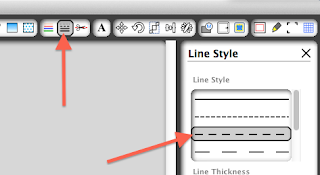
  • Change the line to dashes by selecting the Line Style button and then the dash choice noted with the red arrow below.

  • Duplicate that tree - You'll need two with dashes and one without. 
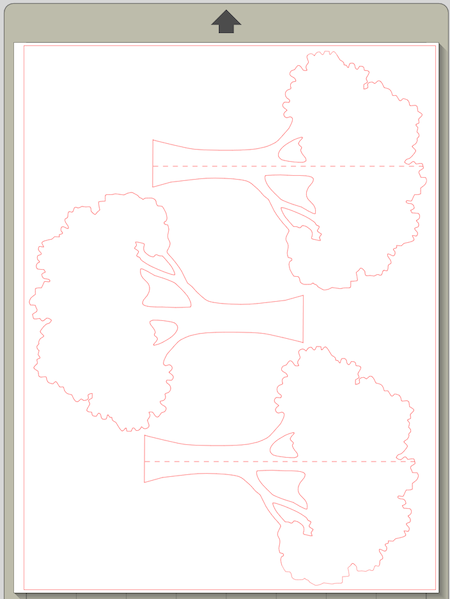
  • Here is what the completed file looks like:


  • Cut the tree file.
  • Remove from the cutting mat.
  • Fold on the center dotted line.


  • The three trees are glued together to form a tree that is 3-D to the front. Below is a diagram showing how it will look from the bottom. Tree 1 (black) is flat. Tree 2 (red is folded and glued on the left half of Tree 1. Tree 3 (blue) is folded in half and glued to the right half of Tree 1.


7. Place on the wall.
  • I use Blu Tak or a similar product to attach to the walls with a material that doesn't damage the wall and is easy to re-position.


Variation:
I recently received an email from Nicole Scherrer in Switzerland. She has been making the Ledge Village but also combined it with the "Birds on a Wire" theme and crafted this variation:


Here is link to her blog and more photos of her Ledge Village.
**********
© 2013 Marji Roy, Ashbee Design


6.10.2013

3-D Orchid Shadow Box

Project Description: 

This shadow box is composed of 6 cutting files with added flower petals assembled to create a double shadow box depicting an exotic orchid plant. It is designed to use 8.5 x 11" card stock but by combining two shadow boxes together, a large wall piece is created. Each of the two shadow boxes is made of three layers. All cutting files are included in the download.


I have completed this file in two sytles, one all in white because I just love the elegance of the plain white shadow box, but also once with the flower centers colored. Both are stunning and you get to decide which you like best.


Note: 
I am a new Silhouette Contributing Artist. Both my Silhouette files and this website are the beginning. Send along any suggestions, problems, ideas or photos as we learn to create together. I'd love to hear from you!  Marji Roy
eMail: ashbeedesignemail@gmail.com

Tutorial assembled using Silhouette Software Release 2.7.18. This tutorial assumes you already know how to use the Silhouette and Silhouette software.


Supplies Needed:

  • Template from Silhouette On-Line Store here.
  • Glue dots 3/16" 
  • Silhouette Cameo
  • 6 sheets of 8.5" x 11" Card Stock - White
  • 1 sheet of 8.5" x 11" Card Stock - Orchid center color (optional)
  • Blue Tack Wall Adhesive (optional)

Steps for completing the 3-D Orchid Shadow Box project:

1. Download the cutting file for your Silhouette Cutting machine from the Silhouette Online Store here. All of the patterns for this project are in Silhouette download. They need to be separated and expanded.  Below are some detailed instructions with photographs.

2. Prepare the files:
The downloaded Silhouette file looks like this. Each of the 5 parts has to be copied, pasted into a new Silhouette file and enlarged. Continue for more hints on doing this.


3. Enlarge and cut the files. Sizing is important.
  • The following technique will assist you in getting the inside frames sized correctly.
  • Copy the front frame (layer 1) from the original download and paste it into a new file. Enlarge to the size you want your final project to be. I found it worked well at about 8 inches. Notice the dotted line indicated by the black arrow below. This dotted line is key in correctly sizing layers 2 and 3.


  • Cut 2 frames of layer 1 in card stock. Cut settings will depend on your card stock thickness.
  • Select everything (EDIT MENU to SELECT ALL) for the layer 1 and change the ink color to blue. This step is optional but it helped me from getting confused. Below are the settings in Silhouette for changing color. Select the line tool and then choose a color.

  • Return to the original file download and copy layer 2.
  • Paste this copy ON TOP of the first file you just turned blue and resize it so the dotted square is slightly smaller. (This dotted square is the fold line when assembling the box.)


  • Notice how the large dotted fold square of the 2nd layer (red) is slightly smaller than the dotted square of the 1st layer (blue). You want to do the same. If you are using thicker card stock you will want more space here.
  • Note: I increased the thickness of the lines so this image would show well on your screen. You do NOT increase the line thickness. 
  • Once the size is appropriate, click on the back frame (blue in my sample) and delete it. You are left with the correctly sized middle layer (layer 2). 
  • Cut it out on your Silhouette.
  • Turn layer 2 blue.
  • Now copy and bring in layer 4 (note NOT 3). This is the middle layer for the bottom. 
  • It is exactly the same size as layer 2 - so adjust it to the correct size, delete the blue layer 2, and cut layer 4.
  • Turn layer 4 blue and bringing in layer 3.
  • Reduce it to be slightly smaller than layer 4. Use the dotted lines as your guide.
  • Delete layer 4 and cut layer 3.
  • Turn layer 3 blue.
  • Copy and bring in layer 5. Make it the same size as layer 3.
  • Cut layer 5.
  • If you want to have the orchid centers be a different color, copy and paste the petals out of layers 2 and 3 and paste them into a new layer, adjust their size and cut those from a fuchsia, magenta or purple color. Or even consider a little water color treatment.

4. Fold boxes.
  • Note each cut file has dotted lines. These are fold lines. 
  • Fold layers 1 and 2 BACK and fold layer 3 UP for upper top group (petals).
  • Fold layers 1 and 4 BACK and fold layer 5 UP for the lower group (stems).
  • Note: The shadow box is stronger if some of the inserts are reversed. If you fold according to the above plans, this will happen.
  • Note: The top right corner of each file is cut off to help you in orienting the cuttings.

5. Score large leaves in layer 4.

  • I used a folding tool to put a score line into the middle of the leaf to add definition. This step is optional.


6. Glue Corners of all 6 boxes.
  • I like to use Glue Dots on the corners although other glue types are appropriate. 
  • It is important to make square corners.
7. Shape and add the additional petals to Layers 2 and 3.

  • Each flower is made up of 3 levels. Level one is a trilogy of petals already cut in the box files. Level two is the double winged piece which get added. The center is the third layer, the oddly shaped piece in the flower cutting.


Here are the petal parts from the cutting:

  • Take the double winded shape and curl it back. I curled it over a Sharpie Marker.

  • Glue the largest of these onto the center of the largest petal trilogy. 
  • Do the same for each additional flower.

  • Now shape and add the centers. These can be white or colored.
  • I am using a face analogy as I describe how to curl the center.
  • The long "nose" pointed up gets curled down.
  • The two "ears" get curled up and in to nestle around the "nose".
  • The "chin" gets curled up with its "Whiskers" getting curled back.


  • The center is glued into the center of the flower on top of the double petal glued there in the previous step.
  • Notice above that I had to clip the petal of one flower so it would fit inside the frame. 


6. Assemble all three frames.
  • They will nest together.
  • The back layer (5) slides into the middle layer (4) forming the box. Secure with glue dots.


  • Slide the frame (layer 1) over the box made by 4 and 5 and secure with glue dots. Layers 5 should rest back against the wall. There should be a space between layer 4 and the front frame.

  • Repeat with layers 1,2 and 3.

7. Place on the wall.
  • I use Blu Tak or a similar product to attach to the walls with a material that doesn't damage the wall and is easy to re-position.
  • Line the two frames up, one above the other, so the stems visually flow from one frame into the next.


**********
© 2013 Marji Roy, Ashbee Design


6.07.2013

Four-Panel Tree Silhouette Tutorial

Project Description:  The multi-panel tree design is one that I use frequently in several different styles. I am making one tutorial for each construction variety (four-panel, three-panel and who knows what else I'll come up with). I probably won't make a tutorial for each design variation (stars, hearts, etc) unless there is something special about the construction technique. The first design in the four-panel variety I just created as a centerpiece for Independence Day but don't limit yourself. I chose red, white and blue because of the season but imagine this same file cut in gold and black for either New Year's Eve or an Oscar party. Or even create the trees in bright pinks, greens and blues for a preteen's "You're a Star" birthday party.


Note: 
I am a new Silhouette Contributing Artist. Both my Silhouette files and this website are the beginning. Send along any suggestions, problems, ideas or photos as we learn to create together. I'd love to hear from you!  Marji Roy
eMail: ashbeedesignemail@gmail.com

The download is currently at 3DCuts.com.  The download includes files in SVG, DXF and PDF formats. The SVG files can be opened in Silhouette (Design Studio requires) or Cricut Exlpore. The PDF can be cut by hand.

Supplies Needed:

  • Template from 3DCuts.com here.
  • Quick drying paper glue
  • Binder Clips or Paper Clips (optional)
  • Silhouette Cameo
  • Card Stock 

Steps for completing the 3-D Four Panel Tree project:

1. Download the cutting file for your Silhouette Cutting machine from the 3DCuts.com for the Tree of Stars.

2. Prepare the files:
The downloaded Silhouette file for the Tree of Stars looks like this.


  • The file contains 2 identical trees. They can be cut as is from 8.5 x 11 card stock or you can copy one tree into a new file and enlarge it to the full size. For a four-panel tree you need to cut 4 tree pieces.
Below are steps to copy and enlarge if needed.
  • Right click on one tree and COPY it ( or EDIT MENU to COPY).
  • Open a new Silhouette File by going to the FILE MENU and selecting NEW.
  • Go up to the EDIT MENU and select PASTE.
  • Click and drag from the lower corner to expand the design. Hold the shift key down as you do this to keep the pattern in proportion.
3. Cut the file.
  • These are the cut settings I used with the 65 lb card stock used on this project. You may need to use different settings depending on your card stock.

4. Assemble.

  • You will be gluing the tips of the four panels together.
  • Line up your four tree patterns. The Tree of Stars is an asymmetrical pattern which means you must pay careful attention to which sides you glue together.
  • Line up your panels so that the same edges match on two pairs. If you look carefully at the pattern you will notice one long edge has 3 smaller stars, the other has 5.  Start with the side with 3.
  • Glue one edge of  two sets of trees together, putting glue on just the tips of the side with 3 little stars.
  • I use Zig glue, and worked to get the pieces together while it was still blue to give a permanent bond.
  • I like to use little binder clips to hold the glued joints together until they dry.


  • Repeat with the other pair of trees.


  • Open the tree pairs and create a soft fold crease at the top. This helps you align the two pairs together. Just crease the top star.

  • The two pairs will be glued together to form a four-panel tree. It will look like this from the bottom with the tips glued together and the trees curving.


  • To asssemble the two pairs together, apply glue to the side of a panel with 5 little stars. 

  • Line up the five-star side from the other pair and add binders clips or paper clips to hold in place.  Allow to dry. This is tricky because the little star points get caught in each other.
  • It works best to line up and clip a couple of the bigger stars and then do the same with the smaller ones.

  • Line up the five-star side from the other pair and add binders clips or paper clips to hold in place.  Allow to dry. This is tricky because the little star points get caught in each other. The binders clips were extremely helpful in this step. I just ordered a box of little ones to have more on hand!

  • The cutting file also includes some extra stars. Re-size those to work with whatever tree size you created and cut one out of contrasting paper to slide into the top of the tree.


And then make more......


And celebrate!


2014 update: I recently received the following photo from crafter Lyn Nash. She used my 3D star tree for a Christmas Centerpiece using gold paper. She also added a fiber optic tiny tree in the center which adds an internal glow. Thanks for sharing Lyn!


© 2013 Marji Roy, Ashbee Design